Quickstart
Get your account, sign in to the portal, and know where to go first.
This page takes you from an invitation email to your first look around the portal. It takes a few minutes.
1. Get your account
There are two ways in:
- Your organization already uses IntegraCI. An administrator invites you and chooses your role. You receive an email with a link: open it to join the workspace and set your own password.
- You are starting a new workspace. Where self-signup is offered, the sign-in page shows New to IntegraCI? Create a workspace. On self-hosted installations accounts are by invitation only, so ask your administrator.
Your account is personal. Never share your password or tokens, and never paste them into chat, tickets, emails, or AI tools.
2. Sign in
- Open your organization’s portal address.
- Enter your Work email and click Continue.
- Enter your Password and click Sign in.
- If two-step verification is on for your account, enter the 6-digit code from your authenticator app.
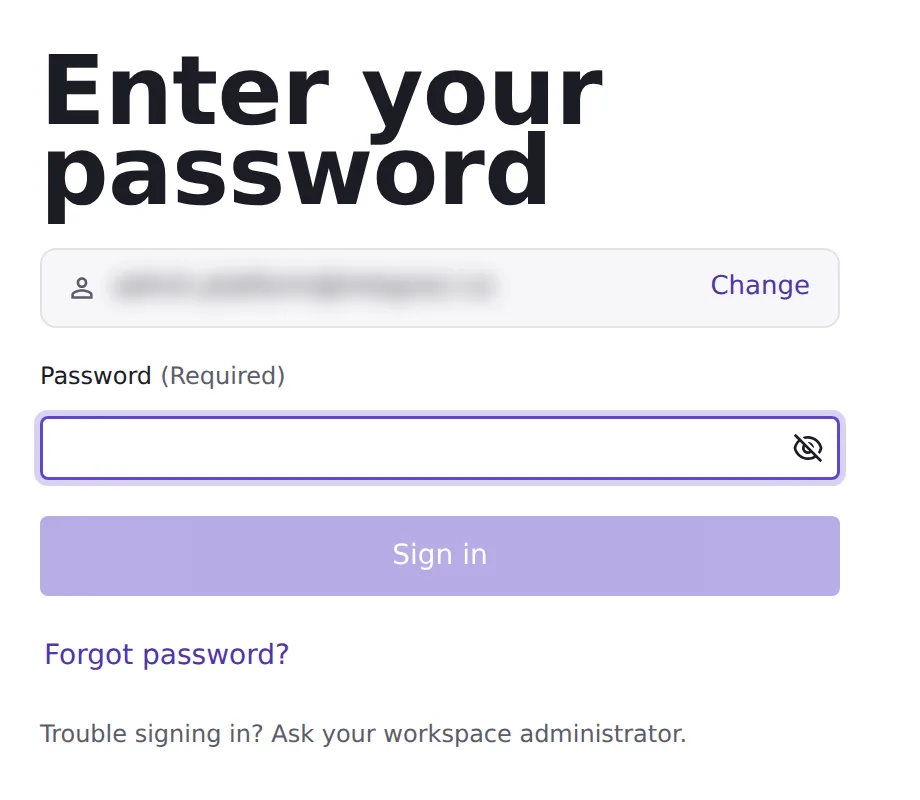
Step 2 of sign-in. Use Forgot password? if you need a reset.
The sign-in page offers a few other options:
| Option | Use it when |
|---|---|
| Continue with single sign-on | Your organization signs in through its identity provider (SSO). |
| Find my workspace | You are not sure which workspace your account belongs to. |
| Forgot password? | You need to reset your password. |
| Continue as guest | Shown only if your organization allows guest access, to look around without an account. |
If you still cannot sign in, ask your workspace administrator.
3. Look around
After signing in you land on Home. It lists the decisions waiting for you, what is on its way to Production, and today’s deployment windows. Find your way around explains the sidebar, the account menu, and search.
4. Bring your first service
Click Add service at the top of any page. The wizard reads your code, proposes safe defaults, and shows you the full plan before anything is created. Add your first service walks through it step by step.
Where to go next
If any of the terms above were new, read Core concepts. Your role decides which buttons you see; if an action is missing or refused, ask an administrator.